Typographic Color: Judging the Gray Value of a Text Block
- Maria
- Typography
- 23 Oct, 2026
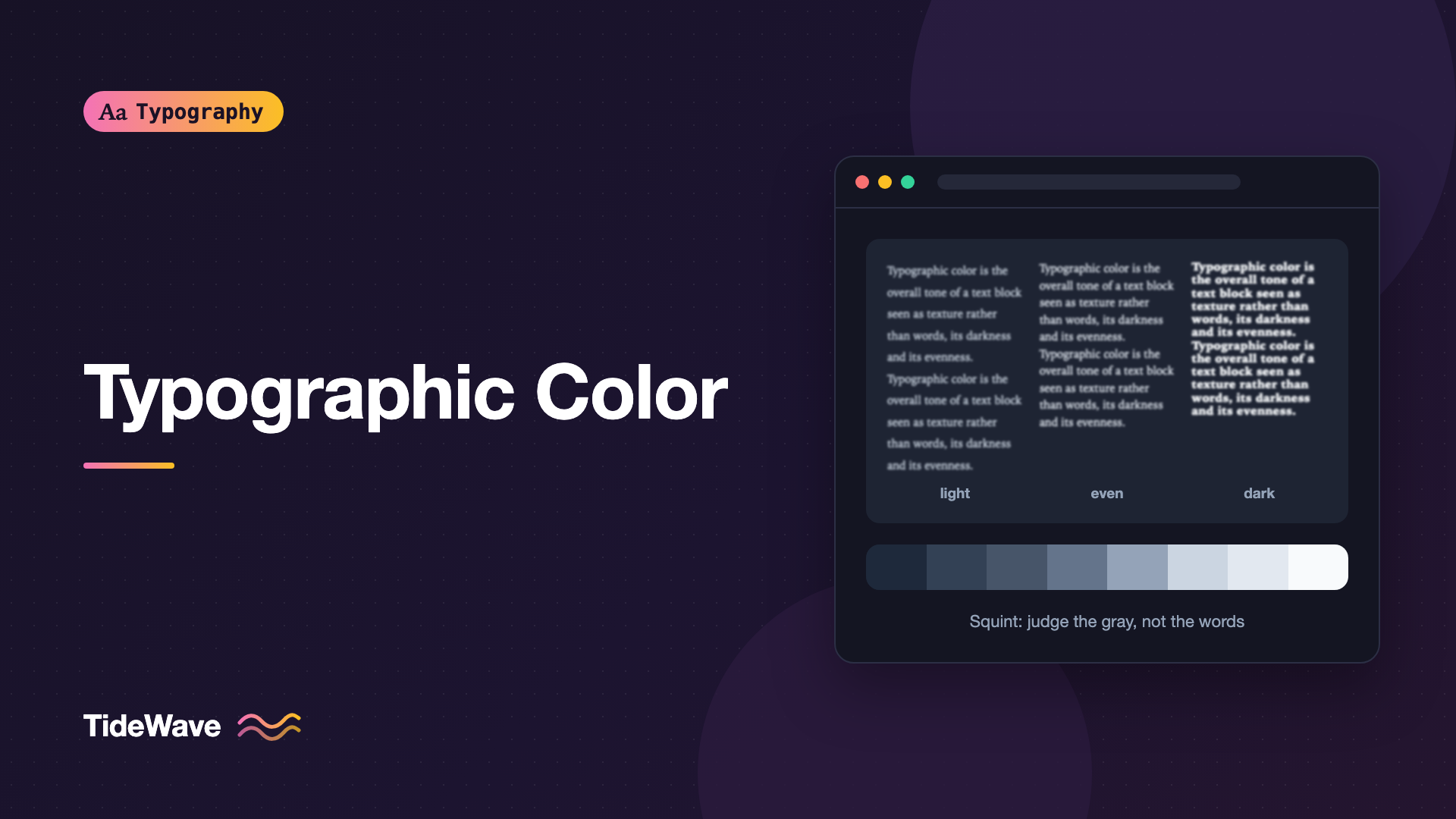
Step back from your screen until you can't read the words on a page, or squint until the letters blur. What's left is a pattern of gray shapes: paragraphs, headings, and gaps. Some pages turn into calm, even gray rectangles. Others look blotchy, with dark clumps, pale gaps, and streaks of white running through them. You haven't read a word, but you already know which page will be more comfortable to read.
That impression is typographic color: the overall darkness, density, and evenness of a block of text. It has nothing to do with hue. Black text on white has color in this sense, and typographers have used the term for centuries to describe how heavy or light a page looks and whether that tone is consistent. Good typographic color is even. Bad color draws the eye to spots that don't deserve attention.
This post explains what determines typographic color, how to judge it, and how to adjust it with font choice and CSS.
What Typographic Color Is
When you look at a text block as a texture instead of as words, three qualities stand out:
- Darkness. How heavy the block looks overall, from a pale gray to nearly black.
- Evenness. Whether the tone is consistent across the block, or blotchy with dark and light patches.
- Texture. The rhythm of the pattern, from tight and dense to open and airy.
None of these are inherently good or bad. A light, open block can feel elegant; a dark, dense block can feel authoritative. What matters is that the color is appropriate to the content and consistent within a block, and that different blocks on the page relate to each other in a planned way.
What Affects Typographic Color
Nearly every typographic setting changes the gray value of a text block. Here are the main factors.
| Factor | Darker color | Lighter color |
|---|---|---|
| Font weight | Heavier weights | Lighter weights |
| Stroke contrast | Low contrast, even strokes | High contrast, thin hairlines |
| x-height | Large x-height | Small x-height |
| Letter width | Condensed letters | Wide letters |
| Letter spacing | Tighter tracking | Looser tracking |
| Word spacing | Tight, even word spaces | Wide or uneven word spaces |
| Line height | Tight leading | Loose leading |
| Text color | Pure black or near-black | Mid or light gray |
Typeface Design
Every typeface has its own color at text sizes. Two fonts at the same nominal weight can look very different in a paragraph. A sturdy sans with a large x-height produces a darker block than a delicate old-style serif at the same size. That's why switching fonts often requires rebalancing weight, size, and spacing.
Weight
Weight has the most direct effect. Moving from 400 to 500 can make a paragraph noticeably darker, and with variable fonts you can tune the weight in small steps to get the color you want:
.article-body {
  font-family: "Source Serif 4", Georgia, serif;
  font-weight: 420;
}
For details on weights and how they're named, see Font Weights Explained: From Hairline to Black.
Spacing
Letter spacing, word spacing, and line height all add white to the block. Too much letter spacing in lowercase text breaks words apart and makes the texture speckled. Too little makes letters clump into dark knots. Line height has a large effect on color: tight leading makes a block dark and dense, generous leading makes it lighter and more open.
Alignment and Justification
Left-aligned text has consistent word spacing, which keeps the color even. Justified text varies word spacing line by line to fill the measure. Without hyphenation, some lines get very wide gaps, and the block develops pale holes and vertical streaks known as rivers. Rivers in Justified Text: Why They Appear and How to Prevent Them goes into detail.
How to Judge Typographic Color
You're trying to see the text as a pattern, not to read it. A few techniques help.
Squint or Step Back
The classic method is to squint at the page or step back from it until the words become a texture. Look for patches that are darker or lighter than the rest. Dark spots often come from bold text, tight lines, or clusters of capitals. Light spots come from loose lines, wide word spaces, or short lines.
Blur It
A CSS filter gives you the same effect on demand. Apply it temporarily while reviewing a page:
.review-color main {
  filter: blur(3px) grayscale(1);
}
Toggle the class on the body element in DevTools. The blur hides the words and shows the tonal pattern. The grayscale removes hue so link colors and highlights don't distract you.
Turn It Upside Down
Typographers sometimes look at a page upside down for the same reason: it stops you from reading. A screenshot rotated 180 degrees in any image viewer works.
Compare Side by Side
Set the same paragraph in two or three candidate configurations next to each other at the size you'll use, then blur them. Differences in color that are hard to articulate become obvious when you see them side by side. This is especially useful when choosing between body fonts or weights. Testing Typography: How to Evaluate Fonts Before You Commit covers comparison methods more broadly.
Balancing Color Across a Page
A page has many text blocks: headings, body, captions, sidebars, and code. Each has its own color, and they should relate to each other deliberately.
Body Text Sets the Baseline
Get the body text color right first, since it covers the most area. A medium gray value, neither faint nor heavy, is comfortable for long reading on most screens.
Headings Should Stand Out by Plan
Headings are meant to be darker and draw attention. But a heading that is much darker than the body creates a heavy spot, and a heading set in a light display weight can end up paler than the body it introduces. Adjust weight and size together to land where you want.
Bold and Italic Change the Color Locally
Bold text creates dark spots by design. Use it sparingly in body text, or those spots multiply into a blotchy page. Italics in many fonts are lighter and narrower than the roman, so long passages of italic look paler. Small caps, if the font has true small caps, blend into the body color far better than full capitals, which form dark blocks.
.acronym {
  font-variant-caps: all-small-caps;
  letter-spacing: 0.04em;
}
Code and Monospace Text
Monospace fonts often look darker or lighter than the surrounding text at the same size. Inline code that's noticeably heavier than the paragraph creates dark specks across the page. Adjusting the size slightly usually fixes it:
code {
  font-family: "JetBrains Mono", ui-monospace, Menlo, monospace;
  font-size: 0.9em;
}
Typographic Color on Screens
Screens add a few variables that print typographers didn't face.
Rendering and Pixel Density
Text renders differently across operating systems and pixel densities. The same font at the same size can look slightly heavier on one platform than another, and low-resolution screens make thin strokes thicker or blurrier. Judge typographic color on the kinds of screens your audience uses, not just the one on your desk.
Dark Mode
Light text on a dark background tends to look heavier and slightly bolder than the same text in dark on light. Many designers reduce the weight a little in dark mode to keep the color consistent:
body {
  font-weight: 400;
}

@media (prefers-color-scheme: dark) {
  body {
    font-weight: 360;
  }
}
That only works smoothly with a variable font. With static weights, a slight increase in line height or a slightly lighter text color can compensate. Typography in Dark Mode: Adjusting Weight, Contrast, and Spacing covers this further.
Text Color Versus Typographic Color
Using a dark gray instead of pure black for body text lightens the typographic color, and some designers prefer it on bright screens. Keep the contrast well within WCAG AA, which requires 4.5:1 for normal text. A gray like #333333 on white has a ratio of about 12.6:1 and still reads as softer than black. Pale grays lighten the block too much and fail accessibility.
A Practical Tuning Process
When a text block doesn't look right, work through it in this order:
- Size and measure. Set the body size and a comfortable line length.
- Line height. Adjust until lines are clearly separated without the block falling apart.
- Weight. Nudge up or down, in small steps with a variable font, until the block reaches the gray you want.
- Spacing. Leave letter spacing at the font's default for body text unless the font is set unusually small or large.
- Alignment. Use left alignment, or justify only with hyphenation turned on.
- Blur and compare. Check the result as a texture, and compare it with your headings and secondary text.
Common Mistakes
- Confusing typographic color with hue. It's about tone and evenness. A page of black text can have very poor typographic color.
- Switching fonts without rebalancing. A new body font at the same size and weight usually changes the gray value. Re-tune.
- Overusing bold. Too many bold phrases make the page spotty and dilute emphasis.
- Letter-spacing lowercase body text. It breaks words into separate letters and makes the texture uneven.
- Justifying without hyphenation. Uneven word spacing creates rivers and pale holes.
- Light gray body text. It lightens the color, and often fails contrast requirements.
Conclusion
Typographic color is the gray value and evenness of text when you stop reading and look at it as a texture. It's shaped by the typeface, weight, size, spacing, line height, alignment, and text color, and an even, appropriate color makes long text comfortable to read.
Judge it by squinting, blurring, or flipping the page, and compare alternatives side by side. Set the body text color first, then balance headings, emphasis, and code against it. It's one of the oldest ideas in typography, and it still separates text that is merely legible from text that is pleasant to read.


