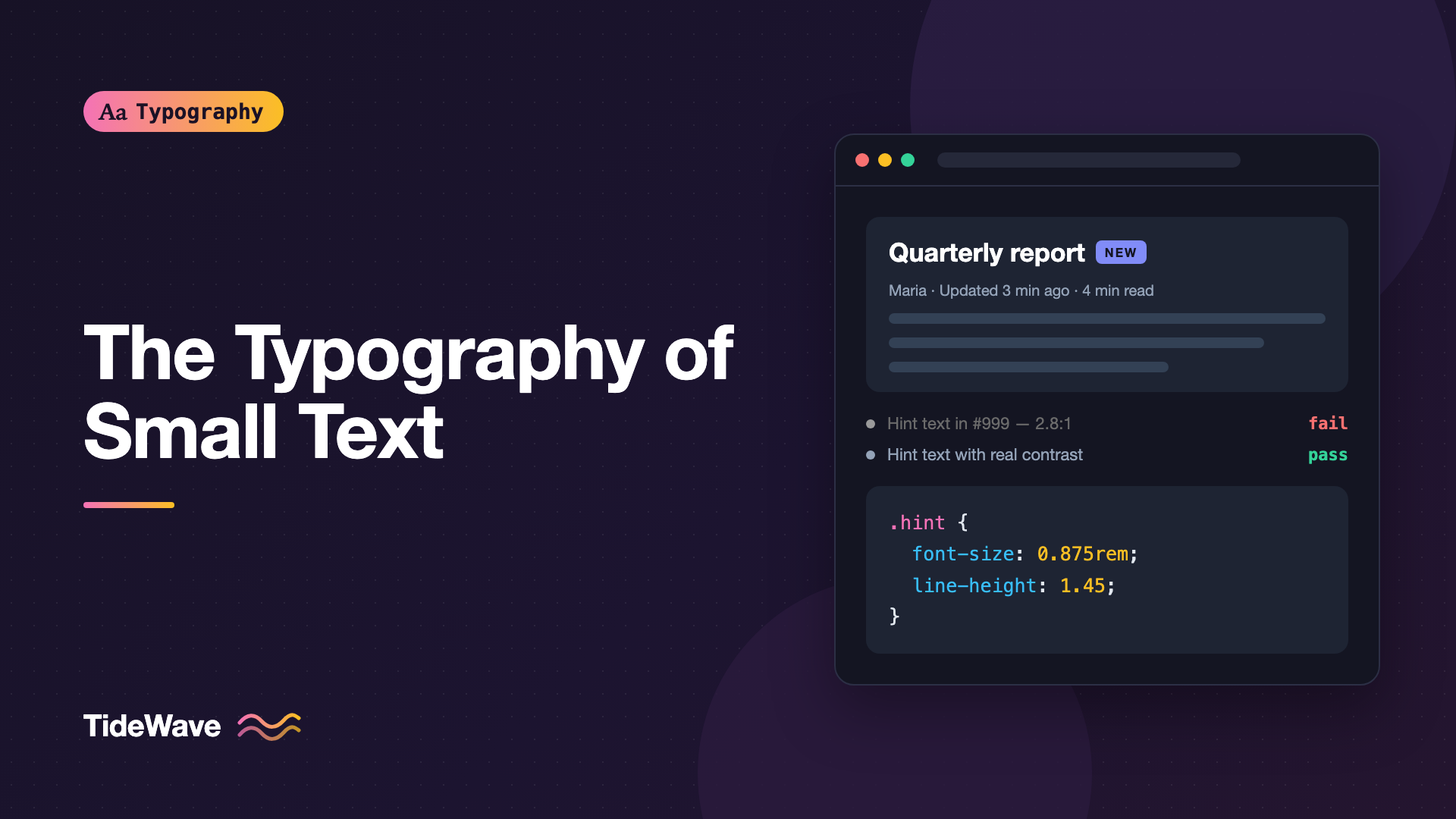
Writing and Styling Microcopy: The Typography of Small Text
- Maria
- Typography
- 23 Oct, 2026
Look at a sign-up form and count the pieces of text that aren't headings or body copy. "Must be at least 8 characters." "We'll never share your email." "Updated 3 minutes ago." "Optional." "By continuing, you agree to our Terms." Each one is a few words long, usually set in a smaller size and a lighter color, and each one can make the difference between someone finishing a task or giving up. This is microcopy: the short, functional text that guides people through an interface.
Microcopy has two halves that are usually handled by different people. A writer decides what it says, and a designer or developer decides how it looks. When those halves don't talk, you get perfectly worded hints set in pale gray at 11 pixels, or bold, readable text that says something vague. This guide covers both: how to write small text that earns its place, and how to style it so people can actually read it.
What Counts as Microcopy
Microcopy is any short text whose job is to help someone do something. Common types include:
| Type | Example | Where it appears |
|---|---|---|
| Helper text | "Use the name on your card." | Below form fields |
| Error messages | "Enter a date after today." | Below fields, in banners |
| Captions | "Figure 2: Revenue by quarter" | Under images and charts |
| Metadata | "Updated 3 min ago · 4 min read" | Cards, articles, lists |
| Empty states | "No invoices yet. Create your first one." | Empty lists and tables |
| Legal and consent | "By signing up, you agree to our Terms." | Near submit buttons |
| Tooltips | "Copy link" | Over icons |
| Badges and tags | "New", "Beta", "Draft" | Next to titles and menu items |
Button labels are microcopy too, though they're styled differently. For the UI side of buttons and form labels, see typography for UI design.
Writing Microcopy That Works Small
Small text gets less attention than big text. People skim it, if they read it at all. That changes how you write.
Lead with the Useful Part
Put the instruction or the key fact first. "8 characters minimum" is better than "Your password should contain a minimum of 8 characters." If someone reads only the first three words, they should still get the point.
Be Specific
Vague microcopy forces people to guess. Compare these:
- "Invalid input" versus "Enter a 5-digit ZIP code"
- "Something went wrong" versus "We couldn't save your changes. Check your connection and try again."
- "Recently" versus "Updated 3 minutes ago"
Specific text is often longer, and that's fine. A clear sentence beats a short puzzle.
Use Plain Words and Sentence Case
Write the way you'd explain it to a colleague. Skip jargon like "authenticate" when "sign in" works. Use sentence case for almost everything, since it's easier to read than Title Case or ALL CAPS at small sizes. Reserve uppercase for very short labels like badges, and add letter spacing when you use it.
Don't Repeat the Label
Helper text that restates the field label wastes space. If the label is "Email," a hint saying "Enter your email" adds nothing. Use the space for what people actually need to know: the format, why you're asking, or what happens next.
Styling Small Text
Once the words are right, the styling has to make them readable without letting them compete with primary content.
Size
Microcopy is typically one or two steps below body text. If body text is 1rem (16 pixels by default), small text usually lands between 0.75rem and 0.875rem.
:root {
  --text-body: 1rem;
  --text-small: 0.875rem; /* helper text, captions */
  --text-xsmall: 0.75rem; /* badges, timestamps */
}
Going below 12 pixels makes text hard to read for many people, especially on lower-resolution screens. And because you're using rem, small text still grows when a user increases their browser's default font size.
Line Height
Small text usually needs a slightly more generous line height than you'd expect. When it wraps to two lines, tight leading at a small size turns into a blur. A range of 1.4 to 1.5 is a safe default:
.hint,
.caption,
.error-text {
  font-size: var(--text-small);
  line-height: 1.45;
}
Letter Spacing
Many fonts look slightly cramped at small sizes because their default spacing is tuned for body text. A tiny bit of positive tracking helps, especially for light text on dark backgrounds:
.meta {
  font-size: var(--text-xsmall);
  letter-spacing: 0.01em;
}

.badge {
  font-size: var(--text-xsmall);
  font-weight: 600;
  text-transform: uppercase;
  letter-spacing: 0.06em;
}
Fonts with an optical size axis (opsz) handle this automatically. They open up spacing and thicken thin strokes at small sizes when font-optical-sizing is auto, which is the default. See what optical sizes are for how that works.
Weight
Small text often looks lighter than it is, because thin strokes lose pixels. If your secondary text is both small and muted, consider 400 rather than 300, and avoid light weights for anything people need to read.
The Gray Text Problem
The most common microcopy mistake is making it too pale. Designers want hints and metadata to recede, so they reach for light gray. The result often fails contrast and becomes unreadable on cheap screens, in sunlight, or for anyone with low vision.
WCAG 2.x Success Criterion 1.4.3 (Contrast, Minimum) requires a contrast ratio of at least 4.5:1 for normal-size text at level AA. Small text is never "large text," so the lower 3:1 threshold doesn't apply to it. Muted microcopy still needs to meet 4.5:1.
| Text color on white | Approx. contrast | Passes AA for small text? |
|---|---|---|
#999999 | 2.8:1 | No |
#888888 | 3.5:1 | No |
#767676 | 4.5:1 | Yes, just |
#6b7280 | 4.8:1 | Yes |
#4b5563 | 7.6:1 | Yes |
You can create hierarchy without failing contrast. Use size, weight, and position to make text secondary, and keep the color dark enough to read:
:root {
  --text-primary: #111827;
  --text-secondary: #4b5563;
  --text-tertiary: #6b7280; /* lowest you should go on white */
}
Run any muted color through a contrast checker before you ship it, and check it on every background it appears on, not just white. For the broader picture, see accessible typography guidelines.
Error and Success Messages
Error text is the microcopy people most need to read, so it shouldn't be the faintest thing on the screen.
.error-text {
  display: flex;
  align-items: flex-start;
  gap: 0.375rem;
  font-size: var(--text-small);
  font-weight: 500;
  line-height: 1.45;
  color: #b91c1c;
}

.error-text svg {
  flex: none;
  inline-size: 1em;
  block-size: 1em;
  margin-block-start: 0.2em;
}
A few rules for error microcopy:
- Put the message next to the problem. A banner at the top listing errors is useful as a summary, but each field needs its own message.
- Pair color with an icon or label. Red alone doesn't work for color-blind users.
- Say how to fix it. "Enter a date after today" instead of "Invalid date."
- Connect it to the field with
aria-describedbyso screen readers announce it.
<label for="start">Start date</label>
<input
  id="start"
  type="date"
  aria-describedby="start-error"
  aria-invalid="true"
/>
<p id="start-error" class="error-text">Enter a date after today.</p>
Metadata and Timestamps
Metadata lines like "Maria · Oct 23 · 6 min read" are some of the smallest text on a page. Keep them consistent across the site, separate items with a middle dot or a slash rather than a pipe, and use a non-breaking space where a value and its unit shouldn't split, like "6 min." The post on non-breaking spaces covers the characters to use.
Relative timestamps ("3 minutes ago") are friendly, but give the exact time somewhere, usually in a time element with a datetime attribute and a title for hover.
<time datetime="2026-10-23T09:12:00Z" title="October 23, 2026, 9:12 AM UTC">
  3 minutes ago
</time>
If metadata updates live, use font-variant-numeric: tabular-nums so the numbers don't shift as they change.
Legal Text and Fine Print
Consent text near a submit button is often set at the smallest size on the page. Small is fine, but it still has to be readable and the links have to be tappable. Keep legal microcopy at 0.8125rem or larger, maintain 4.5:1 contrast, and underline links so they're recognizable.
.fine-print {
  font-size: 0.8125rem;
  line-height: 1.5;
  color: var(--text-secondary);
}

.fine-print a {
  color: inherit;
  text-decoration: underline;
  text-underline-offset: 0.15em;
}
Note
Fine print that people can't read doesn't protect anyone. If the text matters enough to include, it matters enough to make legible.
Truncation
Small text often lives in tight spaces: a card footer, a table cell, a list row. When it doesn't fit, you can truncate it with an ellipsis. Do it carefully. Truncating an error message or a key instruction hides information people need. Truncate only metadata that's also available elsewhere, and show the full text on hover or focus. The ellipsis truncation guide covers the CSS.
Common Mistakes
- Pale gray that fails contrast. Muted text still needs 4.5:1 against its background.
- Text below 12 pixels. It may look tidy in a mockup but strains real readers.
- Placeholder text instead of helper text. It disappears as soon as someone types.
- Generic error messages. "Invalid input" doesn't tell anyone what to do.
- Light font weights at small sizes. Thin strokes break up on screen.
- All-caps sentences. Uppercase is for one or two words, not instructions.
- Truncating important text. Never cut off errors or instructions.
Conclusion
Microcopy is small, but it carries a lot of the interface. Write it to be useful on a skim: lead with the key fact, be specific, use plain words and sentence case. Then style it so it's secondary without being invisible, at 0.75rem to 0.875rem, with a line height around 1.45, a little extra tracking where needed, and a color that still meets 4.5:1 contrast.
A good exercise is to collect every piece of small text in one screen of your product and review it on its own. Rewrite anything vague, darken anything pale, and turn the sizes you find into two or three tokens. Your interface will feel noticeably clearer for very little work.


