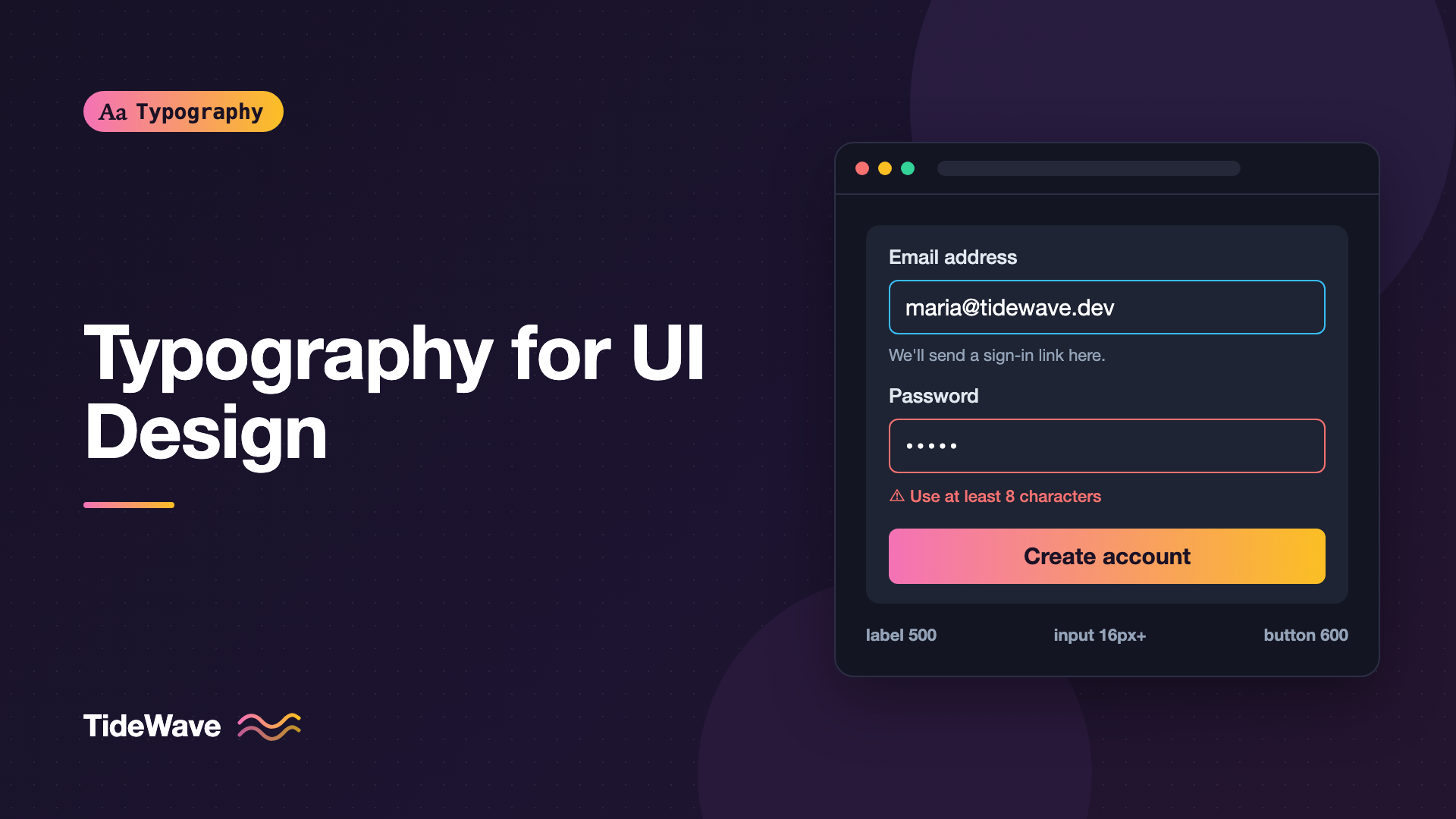
Typography for UI Design: Choosing Fonts for Buttons, Labels, and Forms
- Maria
- Typography
- 23 Oct, 2026
Most typography advice is written for paragraphs: line length, leading, rhythm, the feel of a long column of text. Then you open a settings screen or a checkout form and realize almost none of it applies. The text is two words long. It sits inside a box. It has to be readable at 13 pixels, next to an icon, in a disabled state, and in German, where "Save" becomes "Speichern." UI typography is the craft of making these tiny pieces of text clear, scannable, and consistent.
Interface text is read differently from prose. People don't read a form, they scan it, looking for the field they need and the button that gets them out. A font that is lovely in an article can fall apart on a button, and a font that is merely competent in an article can be excellent in a dense dashboard.
This guide covers what to look for when choosing a UI font, then walks through buttons, labels, inputs, helper and error text, and the CSS that keeps them consistent across a product.
What Makes a Font Good for Interfaces
A typeface for UI work has a different job description than one for editorial text. You're optimizing for recognition at small sizes and in short bursts, not for comfort over twenty minutes of reading.
Large x-Height and Open Apertures
At 12 to 14 pixels, the difference between a font with a generous x-height and one with a small x-height is the difference between text that looks crisp and text that looks like a smudge. A larger x-height gives lowercase letters more pixels to work with. If you want the background, see what x-height is and why it affects readability.
Open apertures, the gaps in letters like c, e, a, and s, matter just as much. When apertures are tight, an e starts to look like an o and c closes up. Humanist and neo-grotesque sans serifs designed for screens (Inter, Source Sans 3, IBM Plex Sans, Segoe UI, SF Pro, Roboto) tend to do well here.
Unambiguous Characters
Interfaces are full of strings where every character counts: confirmation codes, email addresses, coupon codes, usernames, and IDs. Check how the font handles the classic confusables:
| Characters | What to look for |
|---|---|
I l 1 | Capital I with serifs or a tail on lowercase l |
O 0 | A narrower zero, ideally with a slash or dot option |
rn m | Enough spacing that "rn" doesn't merge into "m" |
5 S 8 B | Distinct shapes in codes and order numbers |
Many UI fonts offer alternates through OpenType features. Inter, for example, has a slashed zero via font-variant-numeric: slashed-zero and alternate digit forms through stylistic sets. You can enable them only where they help:
.confirmation-code,
.api-key {
  font-variant-numeric: slashed-zero tabular-nums;
  letter-spacing: 0.05em;
}
Tabular Figures
Prices, quantities, counters, and timers change in place. With proportional figures, a counter going from 11 to 18 shifts horizontally because 1 is narrower than 8. Tabular figures fix that. Most good UI fonts include them, and you turn them on with font-variant-numeric: tabular-nums. The font-variant-numeric guide covers the options in detail.
A Usable Range of Weights
Interfaces lean on weight to create hierarchy without changing size. You'll typically want at least a regular (400), a medium (500), and a semibold (600). Bold 700 is often too heavy for button labels at small sizes. A variable font gives you all of these from one file.
The System Font Option
For many products, the best UI font is the one already on the device. A system font stack uses San Francisco on Apple platforms, Segoe UI on Windows, and Roboto on Android:
:root {
  --font-ui:
    system-ui, -apple-system, "Segoe UI", Roboto, "Helvetica Neue", Arial,
    sans-serif;
}

body {
  font-family: var(--font-ui);
}
The benefits are real: zero download, no layout shift, and text that feels native to the platform. The cost is that your product looks slightly different on every OS, and you can't rely on exact metrics. If brand consistency matters more than native feel, ship a web font. If speed and familiarity matter more, use the system stack.
Buttons
A button label is usually one to three words, and it has to be read instantly. A few principles cover most cases.
Size and Weight
Button text is typically the same size as body text or one step smaller, with a heavier weight. 500 or 600 reads as "interactive" without shouting:
.btn {
  font-family: var(--font-ui);
  font-size: 0.9375rem; /* 15px at default root size */
  font-weight: 600;
  line-height: 1.25;
  letter-spacing: 0.005em;
  padding: 0.625rem 1.125rem;
  min-height: 2.75rem;
}

.btn-sm {
  font-size: 0.8125rem;
  padding: 0.375rem 0.75rem;
  min-height: 2rem;
}
Notice the min-height in rem. If a user increases their default font size, the button grows with the text instead of clipping it.
Sentence Case Over All Caps
All-caps button labels were popular in early Material Design. They're harder to scan because word shapes disappear, and they take more horizontal space. Sentence case ("Save changes") is easier to read and translates more naturally. If your brand calls for uppercase, add tracking, because capitals set at default spacing look cramped:
.btn-caps {
  text-transform: uppercase;
  letter-spacing: 0.06em;
  font-size: 0.8125rem;
}
Use text-transform rather than typing the label in capitals. Screen readers and translators get the real text, and you can change the style later in one place. See letter-spacing all-caps text for how much tracking to add.
Labels That Don't Wrap Badly
A button that wraps to two lines looks broken. Prevent it, but plan for longer translations:
.btn {
  white-space: nowrap;
  max-width: 100%;
  overflow: hidden;
  text-overflow: ellipsis;
}
Truncation is a last resort. A truncated "Delete acco..." is worse than a wider button. Leave room in your layout for labels to grow by 30 to 40 percent, which is a common rule of thumb for localization.
Vertical Centering
Text inside a button often looks a little too low or too high, especially with web fonts whose ascent and descent metrics are unbalanced. Flexbox centering helps, but it can't fix metrics. If your font sits visibly off-center, try text-box trimming where supported, or adjust padding asymmetrically:
.btn {
  display: inline-flex;
  align-items: center;
  justify-content: center;
  gap: 0.5rem;
}

@supports (text-box: trim-both cap alphabetic) {
  .btn {
    text-box: trim-both cap alphabetic;
    padding-block: 0.875rem;
  }
}
Form Labels
Labels tell people what to type. They should be visible at all times, close to their field, and clearly distinct from the input text.
Above the Field
Labels above inputs are the easiest to scan on both desktop and mobile, and they leave room for long translations. Use a medium weight so the label stands apart from the input value without competing with headings:
.field-label {
  display: block;
  font-size: 0.875rem;
  font-weight: 500;
  line-height: 1.4;
  color: var(--color-text);
  margin-block-end: 0.375rem;
}
Avoid Placeholder-Only Labels
Using placeholder text as the only label is one of the most common UI typography problems. The placeholder disappears when the user starts typing, it's usually low contrast, and it's easy to mistake for an already filled-in value. Keep a real <label> element and use the placeholder, if at all, for an example format.
<label for="phone" class="field-label">Phone number</label>
<input id="phone" type="tel" placeholder="e.g. 555 012 3456" />
Required and Optional Markers
An asterisk alone is cryptic. If most fields are required, mark the optional ones with the word "(optional)" in a lighter weight. If most are optional, mark the required ones. Either way, use text that a screen reader will announce.
.field-label .optional {
  font-weight: 400;
  color: var(--color-text-muted);
}
Input Text
The text the user types should be the most legible thing in the form.
16 Pixels on Mobile
iOS Safari zooms the page when a user focuses an input whose font size is smaller than 16 pixels. That zoom is jarring and often leaves the page scaled after the keyboard closes. Setting inputs to 1rem avoids it:
input,
select,
textarea {
  font: inherit;
  font-size: max(1rem, 16px);
}
font: inherit is worth calling out. Form controls don't inherit font settings by default in most browsers, so without it your inputs render in the browser's default UI font while the rest of the page uses yours.
Placeholder Styling
Placeholders should look clearly different from real values. A muted color does that, but it still needs to be readable. Very pale gray placeholders often fail contrast. Aim for a color that meets 4.5:1 against the input background if the placeholder carries useful information.
::placeholder {
  color: var(--color-text-muted);
  opacity: 1; /* Firefox lowers placeholder opacity by default */
}
Helper Text and Error Messages
Helper text explains a field, and error text explains what went wrong. Both are small, and both are easy to get wrong.
.field-hint,
.field-error {
  font-size: 0.8125rem;
  line-height: 1.45;
  margin-block-start: 0.375rem;
}

.field-hint {
  color: var(--color-text-muted);
}

.field-error {
  color: var(--color-danger-text);
  font-weight: 500;
  display: flex;
  gap: 0.375rem;
}
Don't rely on red alone. Color-blind users may not see the difference, and red text on white is often close to the contrast limit. Pair it with an icon, a weight change, or the word "Error," and connect the message to the input with aria-describedby so assistive technology reads it.
Tip
Write error messages as instructions, not accusations. "Enter a date after today" is easier to act on than "Invalid date." Our post on microcopy typography goes deeper on small-text wording and styling.
Building a Small UI Type Scale
Interfaces need fewer sizes than you'd think. A typical product works well with five or six:
| Token | Size | Weight | Used for |
|---|---|---|---|
text-xs | 0.75rem | 500 | Badges, timestamps, table captions |
text-sm | 0.8125rem | 400 | Helper text, secondary metadata |
text-base | 0.9375rem | 400 | Default UI text, menu items |
text-input | 1rem | 400 | Input values |
text-label | 0.875rem | 500 | Form labels, button-sm |
text-title | 1.125rem | 600 | Card titles, dialog headings |
Define these as custom properties so every component uses the same values:
:root {
  --text-xs: 0.75rem;
  --text-sm: 0.8125rem;
  --text-base: 0.9375rem;
  --text-input: 1rem;
  --text-label: 0.875rem;
  --text-title: 1.125rem;

  --weight-regular: 400;
  --weight-medium: 500;
  --weight-semibold: 600;
}
Keep in mind that UI text sizes are a little smaller than editorial body text, but there's a floor. Text below about 12 pixels gets hard to read for many people, and anything set in pixels won't respect a user's browser font size setting. For the token side of this, see typography for design systems.
Line Height in Components
Body text likes a line height around 1.5. Components usually need less, because they're short and live inside padded containers. A tight line height also makes vertical centering more predictable.
- Buttons and badges: 1 to 1.25
- Labels and menu items: 1.3 to 1.4
- Helper and error text: 1.4 to 1.5, since it may wrap to two lines
- Multiline text areas: 1.5, the same as body text
Use unitless values so the line height scales with the font size of each component.
Common Mistakes
- Forgetting
font: inheriton form controls. Inputs and buttons fall back to the system default font and look out of place. - Input text smaller than 16 pixels on mobile. iOS zooms the page on focus.
- Placeholder text as the only label. It vanishes on input and usually fails contrast.
- All-caps labels with no tracking. Capitals need extra letter spacing to stay readable.
- Using too many weights. Regular, medium, and semibold cover almost every interface need.
- Color as the only error signal. Add an icon or text so the message works without color.
- Fixed-height buttons in pixels. Text clips when users enlarge their default font size.
Conclusion
UI typography is about short text read quickly. Pick a font with a generous x-height, open apertures, distinct characters, and tabular figures, or use the system stack if native feel and speed matter more. Then give each role a clear treatment: semibold sentence-case buttons, medium-weight labels above fields, 16-pixel input text, and helper and error text that's small but still readable.
The practical step is to write down your UI scale as tokens and audit your forms against it. Most interface type problems come from one-off values, so a small set of shared sizes and weights fixes more than any single font choice will.


