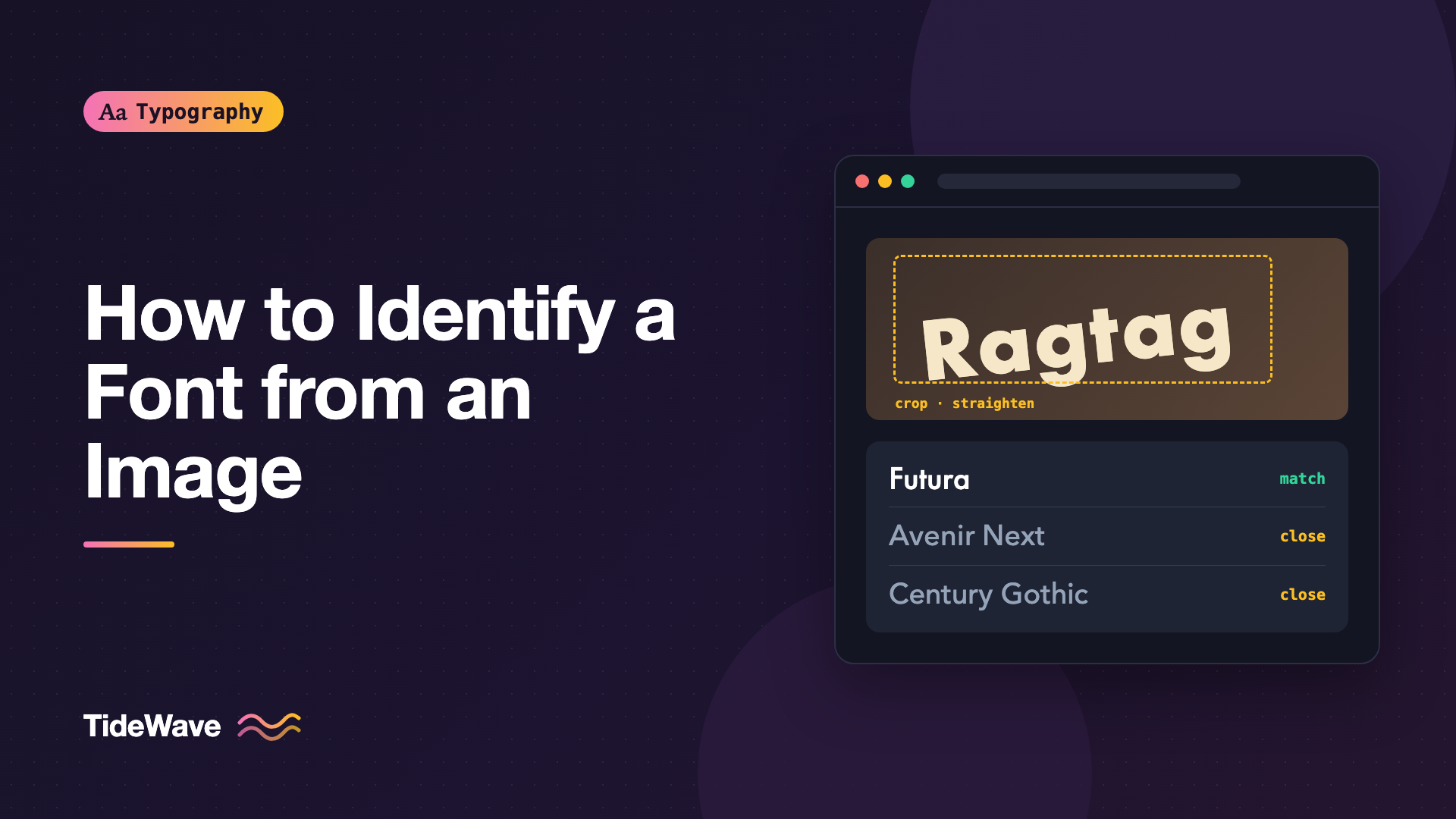
How to Identify a Font from an Image
- Maria
- Typography
- 23 Oct, 2026
A client sends a photo of a shop sign and says, "We want our logo to feel like this." A colleague shares a screenshot of a competitor's landing page. You find an old brochure with headings set in a typeface you love. In each case, you need the same answer: what font is that?
Font identification used to depend on knowing type well or asking someone who did. Today you have automated tools that match letter shapes against large font libraries, browser tools that reveal the exact fonts used on a web page, and communities that can identify obscure typefaces from a single word. Each method works best in different situations.
This post covers how to prepare an image for identification, which tools to try, how to identify fonts manually by their distinctive letters, how to find fonts used on websites, and what to do when the exact font isn't available or affordable.
Start with the Easiest Case: Is It on a Website?
If the text is on a live web page, don't use an image at all. The browser can tell you exactly which font is rendering.
Chrome and Edge DevTools
- Right-click the text and choose Inspect.
- In the Elements panel, open the Computed tab.
- Scroll to the bottom to find Rendered Fonts. It lists the actual font family used and how many glyphs came from it.
The font-family property shows what the CSS asked for. Rendered Fonts shows what the browser actually used, which matters when the first font in the stack failed to load.
Firefox DevTools
- Right-click the text and choose Inspect.
- Open the Fonts tab in the side panel.
- Firefox lists the fonts used on the element, with previews, and shows variable font axes when they're available.
List Every Loaded Font with JavaScript
To see all web fonts a page has loaded, paste this into the console:
await document.fonts.ready;

const loaded = [...document.fonts]
  .filter((font) => font.status === "loaded")
  .map((font) => `${font.family} ${font.weight} ${font.style}`);

console.table([...new Set(loaded)]);
document.fonts only lists fonts loaded through @font-face or the CSS Font Loading API. System fonts like Arial or San Francisco won't appear there. Use the Rendered Fonts panel for those.
Remember that identifying a web font doesn't mean you can use it. Most websites use licensed fonts, and the file you see in the Network tab is licensed to that site. For the details, see understanding font licensing.
Preparing an Image for Identification
When all you have is a photo or screenshot, a little preparation makes automated tools far more accurate.
- Crop tightly: Include only the text you want identified. Remove other text, logos, and background clutter.
- Straighten the text: Rotate the image so the baseline is horizontal. Correct perspective distortion if the photo was taken at an angle.
- Increase contrast: Dark text on a light background works best. Convert to grayscale and increase contrast if needed.
- Use large letters: The higher the resolution of each letter, the better. Aim for letters at least 100 pixels tall when possible.
- Choose distinctive letters: Words with letters like
a,g,R,G,Q,y, andkreveal more about a typeface than words like "mill" or "IIII." - Separate connected letters: Some tools struggle when letters touch. Tight logos may need manual cleanup.
- Remove effects: Shadows, outlines, gradients, and textures confuse matching tools.
If the text has been stretched, condensed, or customized, automated tools may only find close matches. Many logos are based on a typeface but modified by hand.
Automated Font Identification Tools
Several tools let you upload an image and see matching fonts. Their results depend heavily on their font libraries.
| Tool | What it searches | Good for |
|---|---|---|
| WhatTheFont (MyFonts) | A large commercial font catalog | Commercial fonts and common typefaces |
| WhatFontIs | Commercial and free fonts from many sources | Wide searches including free alternatives |
| Font Squirrel Matcherator | A broad font database with a focus on free fonts | Finding free and open-source matches |
| Adobe Fonts visual search | The Adobe Fonts library | Matches you can use with an Adobe subscription |
A typical workflow:
- Upload the prepared image.
- Confirm or adjust the letter detection. Many tools ask you to verify what each detected character is.
- Review the top matches side by side with your sample.
- Try two or three tools. Each searches different libraries, so results vary.
Don't trust the first result blindly. Matching tools often suggest a font that's close but not identical, especially for common styles like geometric sans-serifs, where dozens of typefaces look similar at a glance.
Identifying a Font Manually
Automated tools narrow the field. Your eye confirms the match. Knowing what to look for makes this much faster.
Step 1: Classify the Typeface
Start broad. Is it a serif, sans-serif, slab serif, script, monospace, or display typeface? Within sans-serifs, is it geometric, grotesque, neo-grotesque, or humanist? Understanding type classification gives you a vocabulary for this.
Step 2: Check the Distinctive Letters
Some letters vary more between typefaces than others. These are the most useful ones to compare:
| Letter | What to look for |
|---|---|
a | Single-story or double-story, the shape of the bowl and tail |
g | Single-story or double-story (binocular), the ear and tail |
G | Whether it has a spur, a horizontal bar, or neither |
R | Straight, curved, or diagonal leg, and where it joins the bowl |
Q | Tail shape, angle, and whether it crosses the bowl |
t | Slanted or flat top, the shape of the bottom curve |
y | Straight or curved tail |
e | Horizontal or angled crossbar, size of the eye |
M / W | Splayed or vertical sides, pointed or flat vertices |
1 | Flag shape, foot or no foot |
Step 3: Look at the Terminals and Apertures
Terminals are the ends of strokes. Are they horizontal, vertical, angled, rounded, or ball-shaped? Apertures are the openings in letters like c, e, and s. Are they open or closed? These details often separate similar typefaces. For example, Helvetica has horizontal terminals and closed apertures, while Arial has angled terminals. If you need a refresher on these parts, see the anatomy of a typeface.
Step 4: Compare Proportions
- x-height: Is the lowercase tall or short relative to the capitals?
- Width: Are letters condensed, normal, or extended?
- Contrast: Is there a big difference between thick and thin strokes?
- Weight: Is it light, regular, bold, or black?
Step 5: Test the Candidates
Type the same text in each candidate font and compare it to the original at the same size. Font foundries and Google Fonts let you type custom preview text. Overlaying your candidate on the original image at reduced opacity is one of the most reliable ways to confirm a match.
Asking the Community
When tools fail, people often succeed. Communities dedicated to font identification, such as the r/identifythisfont subreddit and type forums, have members who recognize obscure, vintage, and custom typefaces.
To get a useful answer:
- Share the clearest image you have.
- Include as many different letters as possible.
- Mention where the image came from and its approximate date.
- Say what you've already tried.
When the Font Is Custom or Modified
Many brand logos use custom lettering or modified typefaces. In that case, no tool will find an exact match, because the font doesn't exist as a product. Some large brands also commission custom typefaces that aren't available to the public.
Your options:
- Find the closest available typeface and accept small differences.
- Hire a lettering artist or type designer for custom work.
- Use the identified base typeface and make adjustments in the logo artwork, if the license allows modification for logos.
Finding Alternatives
Often you'll identify the font and then discover it's expensive, unavailable for the web, or licensed only through a specific service. Instead of using an unlicensed copy, look for an alternative with a similar feel.
A practical approach:
- Note the key characteristics: classification, x-height, width, terminals, and contrast.
- Search Google Fonts or other open-source libraries using those traits.
- Compare the distinctive letters you checked earlier.
- Test the candidates in your actual design, not just in specimens.
For starting points, see the best free and open-source fonts for commercial projects.
Here's an example of testing two alternatives side by side in a quick HTML page:
<!doctype html>
<html lang="en">
  <head>
    <meta charset="utf-8" />
    <title>Font match test</title>
    <link
      href="https://fonts.googleapis.com/css2?family=Inter:wght@400;700&family=Work+Sans:wght@400;700&display=swap"
      rel="stylesheet"
    />
    <style>
      body {
        display: grid;
        gap: 2rem;
        padding: 2rem;
        font-size: 3rem;
      }

      .reference {
        width: 100%;
        max-width: 48rem;
      }

      .candidate-a {
        font-family: "Inter", sans-serif;
      }

      .candidate-b {
        font-family: "Work Sans", sans-serif;
      }
    </style>
  </head>
  <body>
    <img class="reference" src="reference.png" alt="Original sample text" />
    <p class="candidate-a">Quality Ragtag 1234</p>
    <p class="candidate-b">Quality Ragtag 1234</p>
  </body>
</html>
Use a sample phrase that includes the distinctive letters from the original. "Quality Ragtag 1234" covers Q, a, g, R, t, y, and figures.
Common Mistakes
- Uploading uncropped, angled photos: Clutter and perspective distortion are the main reasons automated tools fail. Prepare the image first.
- Trusting the first match: Similar typefaces can look identical at a glance. Compare distinctive letters before you decide.
- Assuming a logo uses a real font: Many logos are custom or modified lettering.
- Using the identified font without a license: Finding a font doesn't give you the right to use it. Check licensing before you download or buy.
- Checking
font-familyinstead of the rendered font: On websites, the first font in the stack might not be the one that's actually rendering. - Ignoring weight and width: The right family in the wrong weight or width won't match the original.
Conclusion
Identifying a font starts with the easiest path. For live websites, use DevTools to see the rendered font. For images, crop, straighten, and clean up the sample, then try several automated tools. Confirm the result manually by checking classification, distinctive letters, terminals, and proportions, and ask the community when tools fall short.
Once you've found the font, check its license before using it. If it's not available or affordable, use the same characteristics to find an open-source alternative and test it with your real content. With a clear process, most fonts can be identified in a few minutes.


