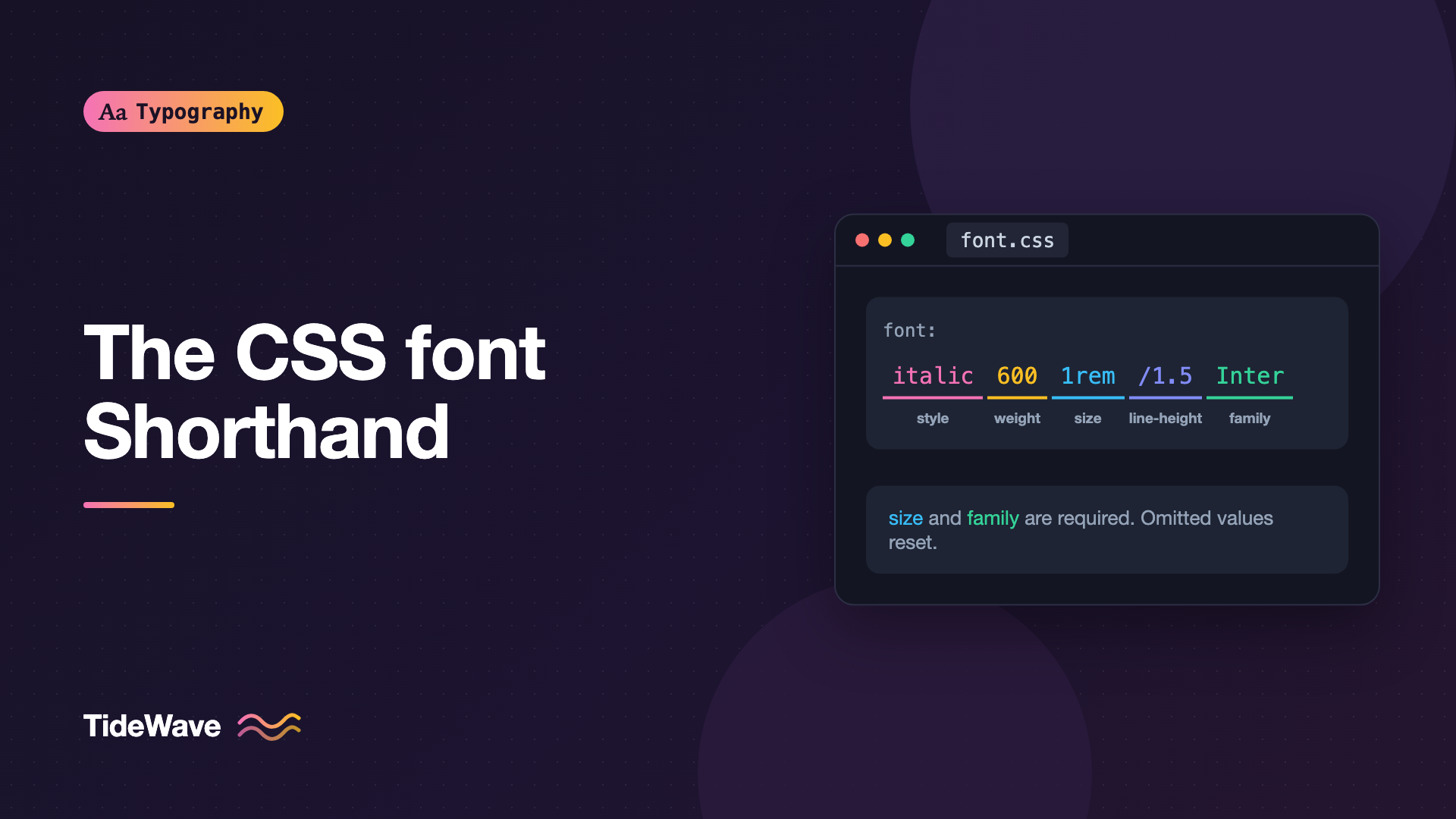
The CSS font Shorthand: Every Value Explained
- Maria
- Typography
- 23 Oct, 2026
You write font: bold 18px Inter and nothing happens. Or you write font: 1rem/1.5 system-ui on a card and suddenly the tabular figures you set on its parent disappear. The font shorthand is one of the oldest properties in CSS, and it's compact and handy, but it has strict ordering rules, two required values, and a habit of quietly resetting properties you didn't mention.
Once you know those rules, the shorthand is a clean way to define a complete text style in one line. It's also the syntax the Canvas API uses for drawing text, so it's worth understanding even if you mostly use longhand properties in your stylesheets.
This guide goes through every value the shorthand accepts, the order they must appear in, what gets reset, the system font keywords, and when you should reach for longhands instead.
The Basic Syntax
The font shorthand sets up to seven properties at once:
.lead {
  font:
    italic small-caps 600 condensed 1.25rem/1.5 "Source Sans 3",
    system-ui,
    sans-serif;
}
That one line is equivalent to:
.lead {
  font-style: italic;
  font-variant: small-caps;
  font-weight: 600;
  font-stretch: condensed;
  font-size: 1.25rem;
  line-height: 1.5;
  font-family: "Source Sans 3", system-ui, sans-serif;
}
In practice you'll rarely use all seven. The most common forms are much shorter:
body {
  font:
    1rem/1.6 Georgia,
    serif;
}

h1 {
  font:
    700 2.5rem/1.1 "Inter",
    system-ui,
    sans-serif;
}
The Order Rules
The shorthand follows a fixed structure:
/* [style || variant || weight || stretch]? size [/ line-height]? family */
Four rules cover everything:
font-sizeandfont-familyare required. If either is missing, the whole declaration is invalid and ignored.font-familymust come last. Everything after the size (and optional line height) is treated as the family list.line-heightis optional and must follow the size directly, after a slash, like1rem/1.5.- Style, variant, weight, and stretch are optional and come before the size, in any order.
Here's how those rules play out:
| Declaration | Valid? | Why |
|---|---|---|
font: 16px Inter | Yes | Size and family present |
font: bold 16px/1.5 Inter | Yes | Weight before size, line height after slash |
font: 600 italic 1rem serif | Yes | Pre-size values can be in any order |
font: bold Inter | No | Missing size |
font: 16px | No | Missing family |
font: 16px bold Inter | Parses, but wrong | "bold Inter" is read as one family name |
font: 1rem / 1.5 Inter | Yes | Spaces around the slash are allowed |
font: Inter 16px | No | Family must come last |
When a shorthand declaration is invalid, the browser drops it entirely and keeps whatever value applied before. That's why a broken font often looks like it "does nothing".
Each Value in Detail
font-style
Accepts normal, italic, or oblique. In the shorthand you can't specify an oblique angle in all browsers, so use the font-style longhand if you need oblique 10deg.
blockquote {
  font:
    italic 1.125rem/1.6 Georgia,
    serif;
}
Whether the browser shows a true italic or a slanted roman depends on the font. The sibling post on true italics vs obliques explains why that difference matters.
font-variant
In the shorthand, font-variant accepts only two values: normal and small-caps. This is a holdover from CSS 2. All the other variant values, like tabular-nums, all-small-caps, or oldstyle-nums, must be set with their own longhand properties.
.label {
  font:
    small-caps 600 0.875rem/1.4 "Source Sans 3",
    sans-serif;
}
font-weight
Accepts normal (400), bold (700), the relative keywords bolder and lighter, or a number from 1 to 1000.
.headline {
  font:
    750 3rem/1.05 "Inter",
    sans-serif;
}
A number like 750 only produces that exact weight if the font is variable or has a matching static file. Otherwise the browser picks the nearest available weight. For more on how weights map to files, see Font Weights Explained.
font-stretch
Sets the font's width. In the shorthand, only keyword values are allowed:
| Keyword | Equivalent percentage |
|---|---|
ultra-condensed | 50% |
extra-condensed | 62.5% |
condensed | 75% |
semi-condensed | 87.5% |
normal | 100% |
semi-expanded | 112.5% |
expanded | 125% |
extra-expanded | 150% |
ultra-expanded | 200% |
Percentages like 87.5% work in the font-stretch longhand but not in the shorthand, because they'd be ambiguous with font-size percentages. Width only has an effect if the font has condensed or expanded styles, either as separate files or through a wdth axis.
font-size
Required. Accepts any length or percentage, plus keywords like small, medium, large, smaller, and larger. Use rem for most cases so the size respects the user's browser setting.
.caption {
  font:
    0.875rem/1.4 system-ui,
    sans-serif;
}
line-height
Optional, and always written after a slash directly following the size. Use a unitless number so child elements calculate their own line height from their own font size.
p {
  font:
    1.0625rem/1.65 "Source Serif 4",
    Georgia,
    serif;
}
If you leave out line height, the shorthand resets it to normal. That's one of the most common surprises with font, covered in the next section.
font-family
Required and always last. It's a comma-separated list of family names and generic families. Quote names that contain spaces or digits, and always end with a generic family like serif, sans-serif, monospace, or system-ui.
code {
  font:
    0.9em/1.5 "JetBrains Mono",
    ui-monospace,
    "SF Mono",
    Menlo,
    monospace;
}
What the Shorthand Resets
This is the part that catches people out. Like all CSS shorthands, font sets every one of its longhands. Any longhand you don't mention is reset to its initial value.
So this:
.card {
  line-height: 1.7;
  font:
    1rem "Inter",
    sans-serif;
}
leaves .card with line-height: normal, because the shorthand came second and reset it. The same applies to font-weight, font-style, font-variant, and font-stretch: anything inherited or set earlier gets reset to normal.
The shorthand also resets several font properties that you can't set through it. These include all the font-variant-* longhands (such as font-variant-numeric and font-variant-ligatures), font-kerning, and font-size-adjust, along with newer properties like font-optical-sizing and font-variation-settings in browsers that implement the current spec.
That leads to bugs like this:
.stats {
  font-variant-numeric: tabular-nums;
}

.stats__value {
  font:
    700 2rem/1 "Inter",
    sans-serif; /* resets font-variant-numeric to normal */
}
The value inherits tabular-nums from .stats, and then the shorthand resets it on the child. The fix is to set the longhand after the shorthand, or on the same element:
.stats__value {
  font:
    700 2rem/1 "Inter",
    sans-serif;
  font-variant-numeric: tabular-nums;
}
As a rule, put longhand declarations after the shorthand when you combine them in the same rule.
System Font Keywords
The shorthand has a second form: a single keyword that sets everything to match a piece of the operating system's interface.
.native-menu {
  font: menu;
}
The standard keywords are:
| Keyword | Matches the font used for |
|---|---|
caption | Captioned controls like buttons |
icon | Icon labels |
menu | Menus and dropdown lists |
message-box | Dialog boxes |
small-caption | Small controls |
status-bar | Window status bars |
These set family, size, weight, and the rest in one go, using whatever the operating system defines. You can't add other values to them, but you can override individual longhands afterward.
They're rarely used on the open web because results vary a lot between platforms. For most projects, a system font stack with system-ui gives more predictable results. Safari also supports non-standard keywords like -apple-system-body that follow iOS Dynamic Type settings, which can be useful in web views inside iOS apps, but they don't work in other browsers.
Practical Uses for the Shorthand
Resetting Form Controls
Form elements like <button>, <input>, <select>, and <textarea> don't inherit the page font by default in most browsers. The shorthand fixes that in one line:
button,
input,
select,
textarea {
  font: inherit;
}
font: inherit sets every font longhand to inherit from the parent, including line height and variants. It's in most CSS resets for good reason.
Defining Text Styles in One Place
If you keep your text styles as custom properties, the shorthand lets you store a whole style in one variable:
:root {
  --text-body: 400 1rem/1.6 "Source Serif 4", Georgia, serif;
  --text-heading: 700 2rem/1.15 "Inter", system-ui, sans-serif;
  --text-caption: 400 0.8125rem/1.4 "Inter", system-ui, sans-serif;
}

body {
  font: var(--text-body);
}

h2 {
  font: var(--text-heading);
}

figcaption {
  font: var(--text-caption);
}
This is tidy, but it bundles everything together. If your design system needs to vary weight independently of size, separate tokens for each longhand are more flexible. Typography for Design Systems covers that trade-off.
Canvas Text
The Canvas 2D API uses the same syntax through ctx.font:
const canvas = document.querySelector("#chart");
const ctx = canvas.getContext("2d");

ctx.font = '600 14px "Inter", system-ui, sans-serif';
ctx.fillStyle = "#1f2937";
ctx.fillText("Monthly revenue", 24, 32);
The same rules apply: size and family are required, and an invalid string is ignored, leaving the previous font in place. Canvas doesn't support line-height in a meaningful way, since you position each line yourself. Also make sure the web font has loaded before drawing, for example with document.fonts.load('600 14px "Inter"'), or the canvas will render with a fallback font.
Shorthand or Longhands?
Neither is better in general. They suit different situations:
| Use the shorthand when | Use longhands when |
|---|---|
| Defining a complete base style for an element | Changing one aspect, like weight or size |
Resetting form controls with font: inherit | Overriding inherited styles selectively |
| Writing Canvas text | Using font-variant-* or variation settings |
| Storing a full text style in one variable | Working in a design system with separate tokens |
A good pattern is to use the shorthand once on body and on a few base elements, then use longhands everywhere else. That avoids accidentally resetting values deep in your component tree.
Common Mistakes
- Leaving out the size or the family, which makes the whole declaration invalid.
- Putting weight or style after the size, where it gets read as part of the family name.
- Forgetting that line height resets to
normalwhen you don't include it. - Setting longhands before the shorthand in the same rule, so the shorthand wipes them out.
- Losing
font-variant-numericor other variant settings on child elements that use the shorthand. - Using a percentage for
font-stretchin the shorthand, where only keywords are valid. - Not quoting family names that contain digits or special characters.
Conclusion
The font shorthand sets style, variant, weight, stretch, size, line height, and family in one declaration. Size and family are required, family goes last, line height goes after a slash, and everything optional goes before the size. Every longhand you leave out is reset, including several you can't even set through the shorthand.
Use it where it shines: base styles, font: inherit on form controls, and Canvas text. For targeted changes, use longhands, and place them after any shorthand in the same rule. Following that habit avoids nearly every surprise the shorthand can cause.


