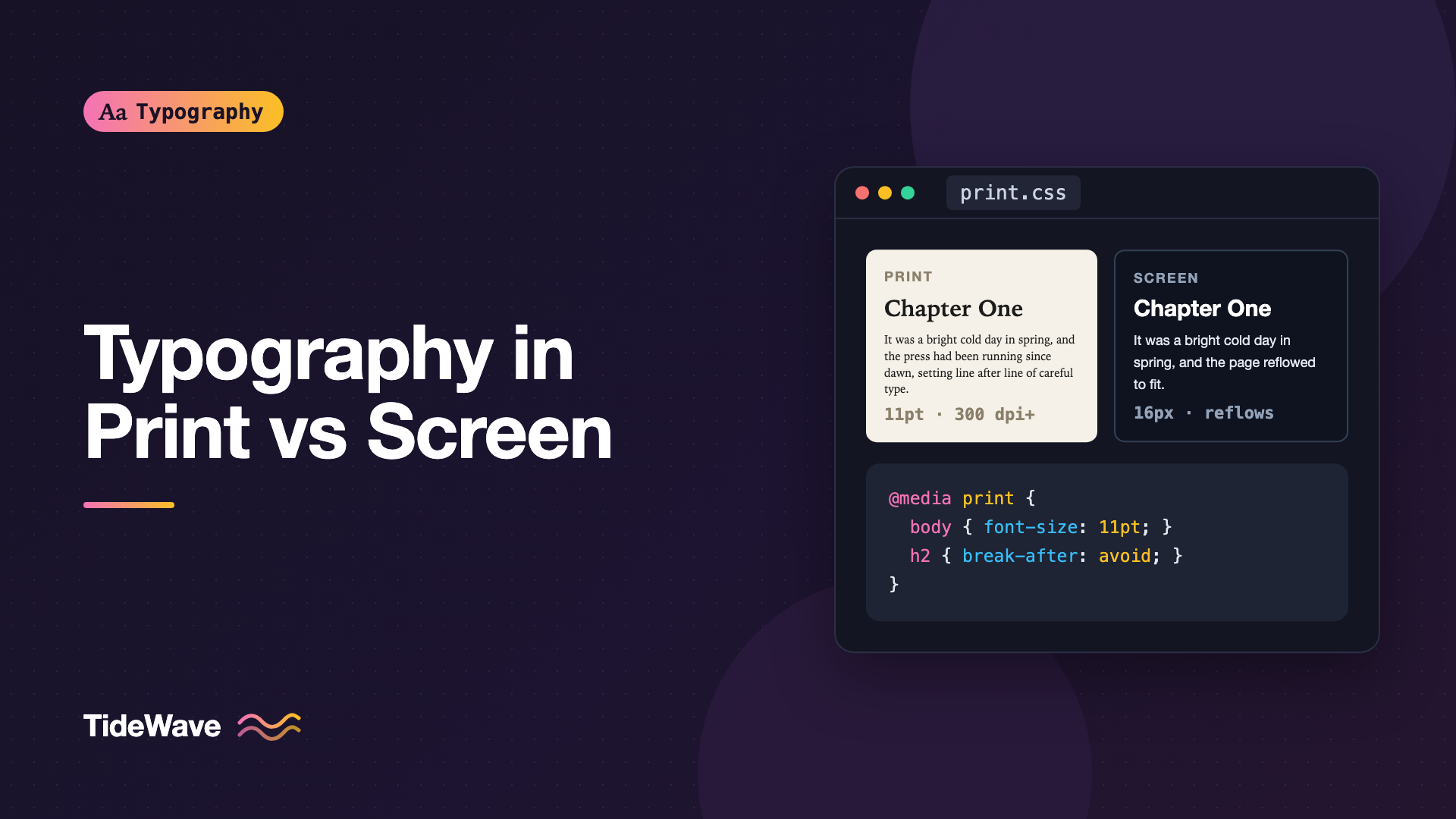
Typography in Print vs Screen: What Changes and What Doesn't
- Maria
- Typography
- 23 Oct, 2026
A designer with years of print experience moves to web work and finds that some of their instincts are perfect and others backfire. The careful attention to line length and hierarchy carries over beautifully. The 9-point body text and fully justified columns do not. A web developer moving the other way hits the opposite surprises: text that looked great on screen prints in a pale gray mess spread across eleven pages. Print and screen typography share the same foundations, but the medium changes how those foundations get applied.
Understanding the differences helps whichever direction you're coming from. It also matters in a practical way, because people still print web pages: recipes, invoices, boarding passes, documentation, and articles they want to read on paper. This guide covers what stays the same, what changes between print and screen, and how to write a print stylesheet that does your web typography justice on paper.
What Doesn't Change
The core goals of typography are the same in every medium: make text easy to read, make the structure clear, and set a tone that fits the content.
- Line length. The comfortable range of roughly 45 to 75 characters per line applies on paper and on screen. See the ideal line length.
- Hierarchy. Size, weight, spacing, and position signal importance in both media.
- Contrast. Readers need enough difference between text and background.
- Spacing relationships. Leading relative to font size, paragraph spacing, and margins all matter.
- Typeface fit. A typeface's personality and readability don't change between media, even if its rendering does.
- Punctuation and details. Real quotation marks, proper dashes, and good kerning look professional everywhere.
If you understand why a print layout works, most of that reasoning transfers to the screen. The differences are in the conditions, not the principles.
What Changes
Resolution
Print is high resolution. A typical laser printer works at 600 dots per inch or more, and commercial offset printing is sharper still. Fine serifs, hairline strokes, and small sizes reproduce cleanly.
Screens have improved enormously, and high-density phone and laptop displays are sharp. But plenty of people still use standard-density monitors, where a pixel is large relative to the details of a letter. On those screens, thin strokes and tiny serifs break up or blur. That's why typefaces designed for the screen often have larger x-heights, sturdier strokes, and more open spacing.
Size and Units
Print sizes are measured in points, where one point is 1/72 of an inch. Typical body text in a book or magazine is around 9 to 12 points. Screen sizes are measured in CSS pixels, where one CSS pixel is defined as 1/96 of an inch at a reference viewing distance. That makes 12 points equal to 16 CSS pixels.
| Medium | Typical body size | Typical viewing distance |
|---|---|---|
| Book or magazine | 9pt to 12pt | Close, held in the hands |
| Phone | 16px to 18px | Close, held in one hand |
| Laptop or desktop | 16px to 20px | Further, on a desk |
A CSS pixel is not a physical measurement on screen. The actual size depends on the device and how far away it's held. Even so, the comparison is telling: 16 CSS pixels equals 12 points in theory, which is at the top of the range for book text. Screen body text runs larger than print because screens are usually viewed from further away and at a lower effective resolution. For a full explanation of units, see points, picas, pixels, and ems.
Fixed Page vs. Flexible Viewport
A printed page has fixed dimensions. The designer knows exactly where every line breaks and can adjust copy, hyphenation, and spacing to fix problems like widows and rivers.
On screen, the reader controls the viewport. Text reflows at every width, users change their font size, and translations change line lengths. You can't hand-fix line breaks because they're different for every reader. Screen typography relies on rules and constraints, like max-width in ch, fluid sizes, and text-wrap, rather than hand-tuning.
Light: Reflected vs. Emitted
Paper reflects ambient light. Screens emit their own. That affects contrast and comfort:
- On paper, black text on white or off-white is the norm, and contrast is comfortable in good lighting.
- On screen, pure black on pure white can feel harsh on a bright display, and many designers soften it to a dark gray. Dark mode adds another set of conditions, where light text tends to look bolder.
Justification and Hyphenation
Print designers often justify body text, and it works because layout software has sophisticated hyphenation and spacing controls and a person can fix problem lines. On the web, justified text without good hyphenation produces uneven word gaps and rivers of white space, especially in narrow columns. Left-aligned, ragged-right text is usually safer on screen. The post on choosing text alignment goes into the trade-offs.
Interaction
Screen text is interactive. Links need to look like links, text needs to be selectable, and type has to work in buttons, forms, and menus. None of that exists in print. Screen typography also has to accommodate assistive technology, zooming, and user preferences, which print never had to consider.
Color
Print uses CMYK inks on paper. Screens use RGB light. A brand color that looks vivid on screen may print duller, and pale screen grays may vanish entirely on a printer, especially an inkjet or a laser in toner-saving mode.
Printing Web Pages
When someone prints a web page, the browser applies your CSS to paged media. Without a print stylesheet, they often get navigation menus, cookie banners, ads, and dark backgrounds spread across many pages. A small amount of print CSS fixes most of it.
The Print Media Query
Put print-specific rules in a @media print block:
@media print {
  /* Hide interactive and decorative elements */
  header nav,
  .site-footer,
  .cookie-banner,
  .share-buttons,
  .newsletter-signup {
    display: none;
  }

  /* Plain black on white */
  html,
  body {
    background: #fff;
    color: #000;
  }

  /* Let content use the full page width */
  .prose {
    max-width: none;
    margin: 0;
    padding: 0;
  }
}
Print Units and Sizes
In print styles, physical units make sense. Points are the natural unit for paper:
@media print {
  body {
    font-size: 11pt;
    line-height: 1.45;
  }

  h1 {
    font-size: 22pt;
  }

  h2 {
    font-size: 16pt;
  }

  h3 {
    font-size: 13pt;
  }
}
Many print designers like a serif for printed body text. If your site uses a sans serif, you can switch for print, though keeping the brand font is also fine.
Page Margins with @page
The @page rule sets page size and margins:
@page {
  size: A4;
  margin: 2cm 2.2cm;
}
Use size: letter for US Letter, or leave size out to use whatever paper the reader's printer is set to, which is often the better choice for a public website.
Controlling Page Breaks
Headings stranded at the bottom of a page and images split across pages look careless. Break properties help:
@media print {
  h1,
  h2,
  h3 {
    break-after: avoid;
  }

  figure,
  pre,
  table,
  blockquote {
    break-inside: avoid;
  }

  p {
    orphans: 3;
    widows: 3;
  }
}
orphans and widows set the minimum number of lines left at the bottom or top of a page when a paragraph breaks. These are true print properties that do nothing on screen. For on-screen fixes, see widows and orphans.
Showing Link URLs
On paper, a link is just underlined text. You can print the URL after it so readers know where it points:
@media print {
  .prose a[href^="http"]::after {
    content: " (" attr(href) ")";
    font-size: 0.85em;
    word-break: break-all;
  }
}
Limit this to content areas so navigation and buttons don't get URLs appended.
Colors and Backgrounds
Browsers don't print background colors and images by default, to save ink. That can make light text on a dark background disappear. Set dark text in print styles, and if a background is truly essential, like a color swatch or a status badge, you can request it with print-color-adjust:
@media print {
  .status-badge {
    print-color-adjust: exact;
  }
}
Use it sparingly. Readers who print pages generally want to save ink.
Testing Print Styles
You don't need a printer to test. Chrome's DevTools can emulate print media from the Rendering panel, and every browser's print preview shows exactly how pages will break. Check a long article, a page with tables, and a page with code blocks, since those are the most common things people print.
Common Mistakes
- Applying print body sizes to screens. 10-point text translates to tiny screen text.
- Justifying web text without hyphenation. Rivers and uneven gaps appear quickly.
- Hairline weights on screens. They break up at standard pixel densities.
- No print stylesheet. Navigation, banners, and dark backgrounds waste paper.
- Pale gray text in print. It may not print at all on some printers.
- Headings at the bottom of a printed page. Use
break-after: avoid. - Assuming screen colors match print. RGB colors can shift a lot on paper.
Conclusion
Print and screen typography share the same principles: comfortable line length, clear hierarchy, sufficient contrast, and a typeface that suits the content. What changes are the conditions: resolution, units, viewing distance, a fixed page versus a reflowing viewport, light that's reflected rather than emitted, and the fact that screen text is interactive and user-controlled.
If you build for the web, add a short print stylesheet. Hide the interface, switch to dark text on white, set sizes in points, add page margins, and control breaks around headings and figures. It takes a few minutes and makes every printed page of your site look like someone cared about it.


