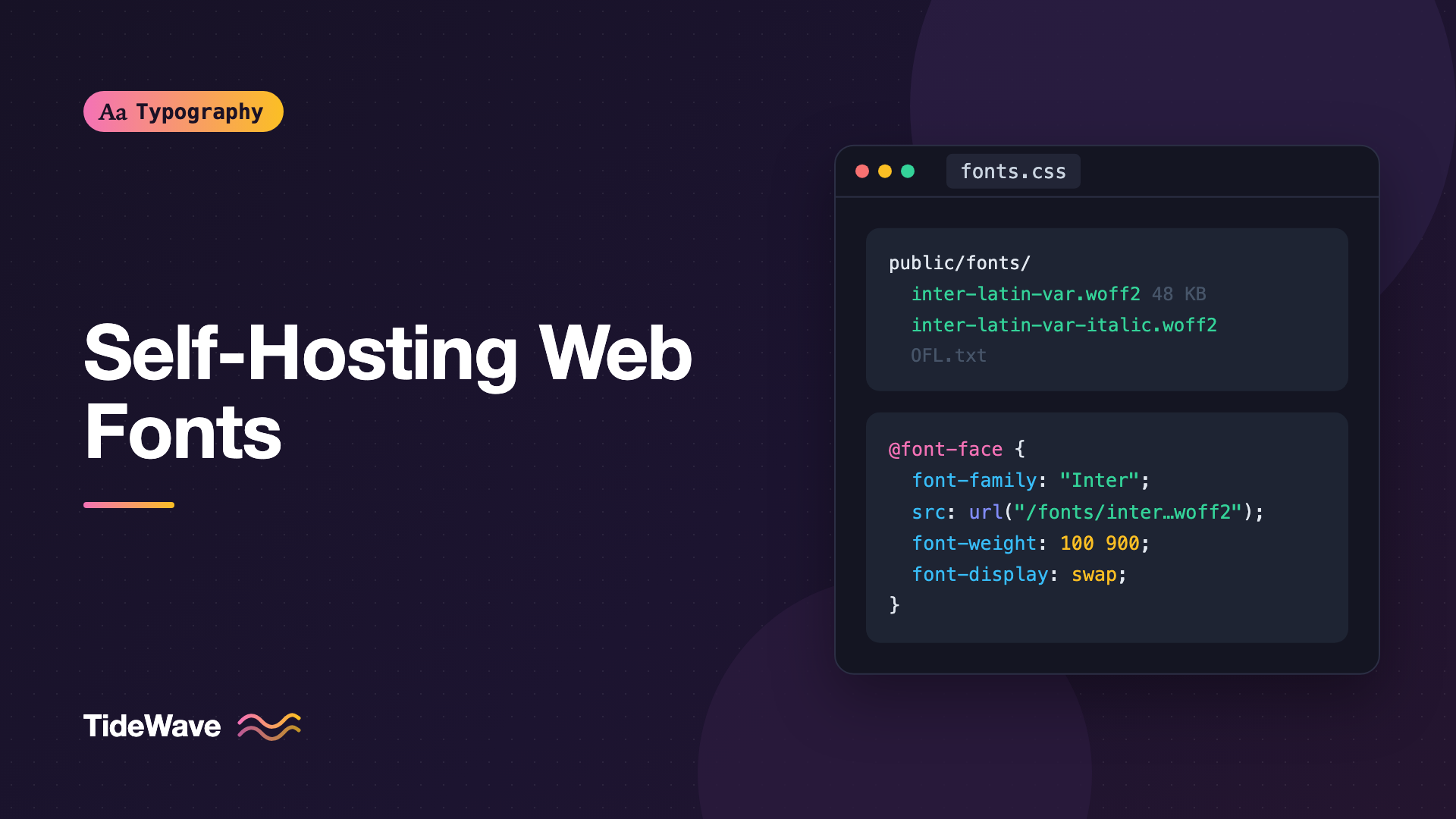
Self-Hosting Web Fonts: A Step-by-Step Guide
- Maria
- Typography
- 23 Oct, 2026
Adding a font from a hosted service takes one <link> tag, which is why so many sites do it. But that tag pulls in a stylesheet from another domain, which then points the browser at font files on yet another domain. Each new origin needs its own DNS lookup, connection, and TLS handshake before a single byte of font data arrives. You also can't control the caching, the exact files served, or the request data a third party receives about your visitors.
Self-hosting means putting the font files on your own server or CDN and writing the @font-face rules yourself. It's more work up front, typically half an hour, but it gives you full control over what gets downloaded and when. Since browsers partitioned their HTTP caches by site, the old argument that a shared Google Fonts cache would already have the file no longer applies, so the performance case for self-hosting is stronger than it used to be.
This guide walks through the whole process: checking the license, getting the files, converting and organizing them, writing @font-face, preloading, caching, and verifying it all works.
Step 1: Check the License
Before you download anything, make sure the license allows self-hosting. This matters more than any technical step.
- Open-source fonts under the SIL Open Font License (OFL) or Apache License, which covers most of the Google Fonts catalog, generally allow self-hosting and modification, including subsetting.
- Commercial fonts usually require a specific web license. Some are priced by monthly page views, some forbid modification (which can include subsetting or format conversion), and some only permit use through the foundry's own hosting.
- Fonts installed on your computer aren't automatically licensed for web use, even if they came with your operating system or design software.
Read the license file that ships with the font, and if anything is unclear, ask the foundry. This isn't legal advice; for anything commercial or ambiguous, check with the vendor or a lawyer. Understanding Font Licensing: Desktop, Web, and App Licenses Explained covers the license types in more depth.
Step 2: Get the Font Files
Where you get the files depends on the source:
- The foundry or project's own release. Many open-source families publish releases on GitHub with web-ready WOFF2 files included. This is usually the best source, since you get the latest version and often a variable font.
- Google Fonts. The family page lets you download the font, though the download typically contains TTF files rather than WOFF2.
- Fontsource. The Fontsource project packages open-source fonts as npm packages with pre-subsetted WOFF2 files, which is convenient for JavaScript build setups.
- A commercial foundry. After purchasing a web license, you'll get a web font kit, usually WOFF2 and sometimes WOFF.
Prefer a variable font if one exists and you need three or more weights. One file can replace a whole set of static weights. If you only need Regular and Bold, two static files may be smaller.
Step 3: Convert to WOFF2
Browsers can load TTF and OTF directly, but WOFF2 is compressed and much smaller. Every current browser supports it, so it's the only format most sites need. WOFF2 vs WOFF vs TTF vs OTF: Font Formats for the Web Explained explains the differences.
If your source files are TTF or OTF, convert them with fonttools, the same Python package used for subsetting:
pip install fonttools brotli

# Convert a single file to WOFF2
fonttools ttLib.woff2 compress SourceSerif4-Regular.ttf

# Output: SourceSerif4-Regular.woff2
Google's woff2_compress command-line tool does the same job if you prefer it.
Subset While You're at It
Most fonts include characters for languages your site never shows. Removing them often cuts file size dramatically. A Latin-only subset is a common choice for English-language sites:
pyftsubset SourceSerif4-Regular.ttf \
  --unicodes="U+0000-00FF,U+0131,U+0152-0153,U+02BB-02BC,U+02C6,U+02DA,U+02DC,U+2000-206F,U+20AC,U+2122,U+2191,U+2193,U+2212,U+2215,U+FEFF,U+FFFD" \
  --layout-features="*" \
  --flavor=woff2 \
  --output-file=source-serif-4-latin-400.woff2
Subsetting has trade-offs, such as dropped OpenType features or missing characters in user-generated content. Font Subsetting: Shrinking Web Font Files Without Losing Characters covers how to do it safely.
Step 4: Organize the Files
Pick a predictable folder and naming scheme. A pattern that includes family, subset, weight, and style makes @font-face rules easy to read and avoids mix-ups:
public/
  fonts/
    inter-latin-var.woff2
    inter-latin-var-italic.woff2
    source-serif-4-latin-400.woff2
    source-serif-4-latin-400-italic.woff2
    source-serif-4-latin-700.woff2
Lowercase, hyphenated names avoid case-sensitivity surprises when you deploy from macOS (case-insensitive by default) to a Linux server (case-sensitive).
Commit the license file alongside the fonts, for example public/fonts/OFL.txt. Many open-source licenses require that the license accompany the font when you redistribute it, and serving it from your site counts as distribution.
Step 5: Write the @font-face Rules
Each file gets one @font-face rule. Rules with the same font-family name form a family, and the browser picks the right file based on font-weight and font-style.
Static Fonts
@font-face {
  font-family: "Source Serif 4";
  src: url("/fonts/source-serif-4-latin-400.woff2") format("woff2");
  font-weight: 400;
  font-style: normal;
  font-display: swap;
}

@font-face {
  font-family: "Source Serif 4";
  src: url("/fonts/source-serif-4-latin-400-italic.woff2") format("woff2");
  font-weight: 400;
  font-style: italic;
  font-display: swap;
}

@font-face {
  font-family: "Source Serif 4";
  src: url("/fonts/source-serif-4-latin-700.woff2") format("woff2");
  font-weight: 700;
  font-style: normal;
  font-display: swap;
}
Variable Fonts
For a variable font, give font-weight a range so the browser knows one file covers them all:
@font-face {
  font-family: "Inter";
  src: url("/fonts/inter-latin-var.woff2") format("woff2");
  font-weight: 100 900;
  font-style: normal;
  font-display: swap;
}

@font-face {
  font-family: "Inter";
  src: url("/fonts/inter-latin-var-italic.woff2") format("woff2");
  font-weight: 100 900;
  font-style: italic;
  font-display: swap;
}
A Few Rules Worth Following
- Use the same
font-familyname for every style of a family. Don't create separate families called "Inter Bold" and "Inter Italic"; you'll lose automatic bold and italic selection. - Always set
font-display. Without it, most browsers hide text for up to about three seconds while the font loads.swapis the usual choice for brand fonts. The font-display guide explains every value. - Root-relative URLs (
/fonts/...) are simplest. Relative URLs in@font-faceresolve against the stylesheet's location, not the page's, which trips people up when CSS lives in a subfolder. - Only WOFF2 is needed in
srcfor current browsers. Longsrclists with EOT, SVG, and TTF are leftovers from a decade ago.
Step 6: Use the Fonts
Reference the family with a sensible fallback stack:
:root {
  --font-text: "Source Serif 4", Georgia, "Times New Roman", serif;
  --font-ui: "Inter", system-ui, -apple-system, "Segoe UI", Roboto, sans-serif;
}

body {
  font-family: var(--font-text);
}

nav,
button,
input,
label {
  font-family: var(--font-ui);
}
The fallbacks matter. They're what readers see while the font loads, and permanently if it fails. Pick fallbacks with similar proportions, and consider tuning them with metric overrides so the swap doesn't shift the layout. Reducing Layout Shift with size-adjust and Font Metric Overrides shows how.
Step 7: Preload the Critical File
Fonts are discovered late, after the browser has the HTML and CSS. A preload hint starts the download earlier. Preload only the one or two files used for above-the-fold text:
<head>
  <link
    rel="preload"
    href="/fonts/inter-latin-var.woff2"
    as="font"
    type="font/woff2"
    crossorigin
  />
  <link rel="stylesheet" href="/css/main.css" />
</head>
The crossorigin attribute is required even though the font is on your own domain, because fonts are always fetched in CORS mode. Without it, the preloaded file isn't reused and the font downloads twice. Preloading too much backfires; Preloading Fonts: When It Helps and When It Hurts explains where the line is.
Step 8: Set Cache and Content-Type Headers
Font files rarely change, so cache them for a long time. If you version filenames when a font changes, you can mark them immutable:
Cache-Control: public, max-age=31536000, immutable
Content-Type: font/woff2
How you set these depends on your host.
Nginx
location ~* \.woff2$ {
  add_header Cache-Control "public, max-age=31536000, immutable";
  types { font/woff2 woff2; }
}
Netlify
# netlify.toml
[[headers]]
  for = "/fonts/*"
  [headers.values]
    Cache-Control = "public, max-age=31536000, immutable"
Vercel
{
  "headers": [
    {
      "source": "/fonts/(.*)",
      "headers": [
        {
          "key": "Cache-Control",
          "value": "public, max-age=31536000, immutable"
        }
      ]
    }
  ]
}
WOFF2 is already compressed internally, so there's no benefit to gzip or Brotli on top of it. Most servers skip it automatically for font types.
Serving Fonts from a Different Domain
If fonts live on a separate CDN domain from your pages, the server must send an Access-Control-Allow-Origin header, or browsers will refuse to use the fonts:
Access-Control-Allow-Origin: https://www.example.com
Serving fonts from the same origin as your pages avoids this entirely, and also avoids an extra connection.
Step 9: Verify It Works
Open your site with DevTools and check:
- Network panel, filtered to Font. Each file should load once, with a
200status on the first visit and from cache on reload. Check theContent-TypeandCache-Controlheaders. - No duplicate downloads. If a preloaded font appears twice, the
crossoriginattribute or the URL doesn't match. - No unused files. If a file never appears, either it isn't used (remove it) or a
font-weightorfont-stylemismatch means the browser is picking a different file. - No faux styles. If bold or italic text looks smeared or slanted rather than properly drawn, the browser is synthesizing it. Check that a matching
@font-faceexists. - The console. Failed font loads, such as a 404 or a CORS error, show up here.
The Chrome DevTools Elements panel also shows, under Computed, which font was actually used to render the selected text ("Rendered Fonts").
Tip
To test the fallback experience, throttle the network to a slow profile and reload. You'll see what users on slow connections see during the swap, and whether the layout jumps.
Using a Framework?
Most frameworks have a font helper that does much of this for you. In Next.js, next/font downloads Google Fonts at build time, self-hosts them, generates @font-face rules, and creates a metric-adjusted fallback. If you're using Next.js, read Font Optimization in Next.js with next/font instead of doing it manually. In other stacks, Fontsource packages give you local files and CSS you can import.
Common Mistakes
- Self-hosting without checking the license. Some commercial licenses don't allow it at all.
- Separate family names per weight. It breaks the browser's style matching and leads to faux bold.
- Missing
crossoriginon preload. The font downloads twice. - Relative URLs that break.
url("fonts/inter.woff2")resolves relative to the CSS file, not the page. - Short cache lifetimes. Fonts are ideal for long-term caching; a missing
Cache-Controlheader means repeat downloads. - Shipping every weight from the download. Only include the files you actually reference.
- Forgetting the license file. Open-source licenses usually require it to travel with the fonts.
Conclusion
Self-hosting web fonts comes down to a handful of steps: confirm the license, get WOFF2 files (variable if it makes sense), subset them, organize them with clear names, write one @font-face rule per file with font-display set, preload the critical one, and serve everything with long cache headers.
The result is fonts that load from the same connection as your page, are cached exactly as long as you want, and don't send visitor data to a third party. Once it's set up, it needs almost no maintenance, and you'll have full control the next time you need to tune performance.


